How To Integrate Myuser Into Slack
Connect Slack to Myuser in 3 minutes with your own Slack app - Myuser posts updates straight into the channel you pick.
The purpose of this guide is to use your own Slack App, so you have a lot more control. At the end of this guide you will have a Bot User OAuth Token - which is what Myuser needs to finish the installation and post updates right into your Slack channel.
The whole setup takes about 3 minutes.
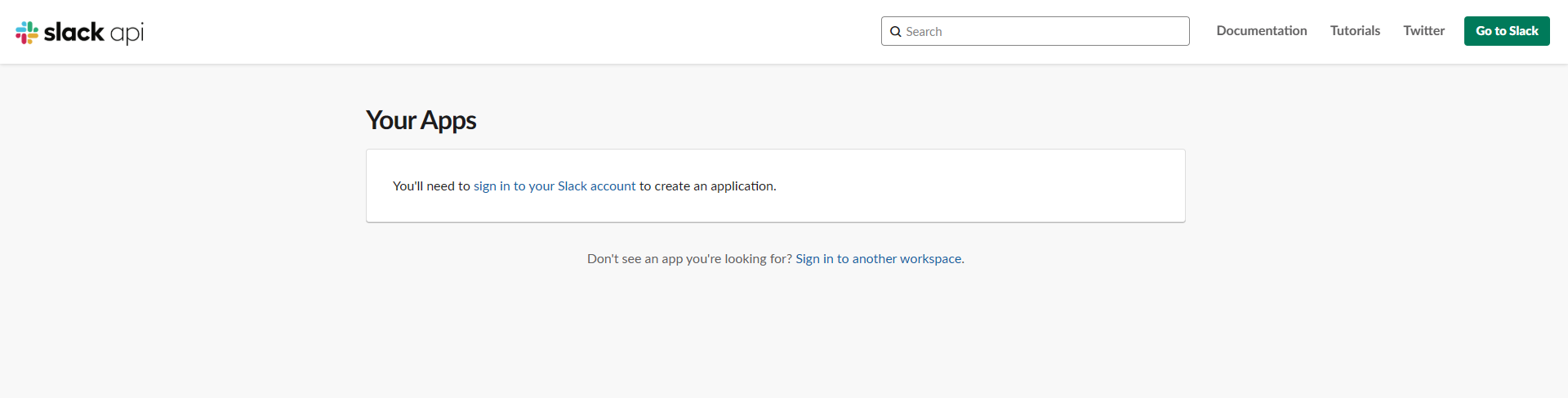
Step 1: Open the Slack apps page
Visit https://api.slack.com/apps and log in to the workspace you want the app to be installed in.
Step 2: Go back to the apps page
Once you log in, do not open an app - simply go to https://api.slack.com/apps again.
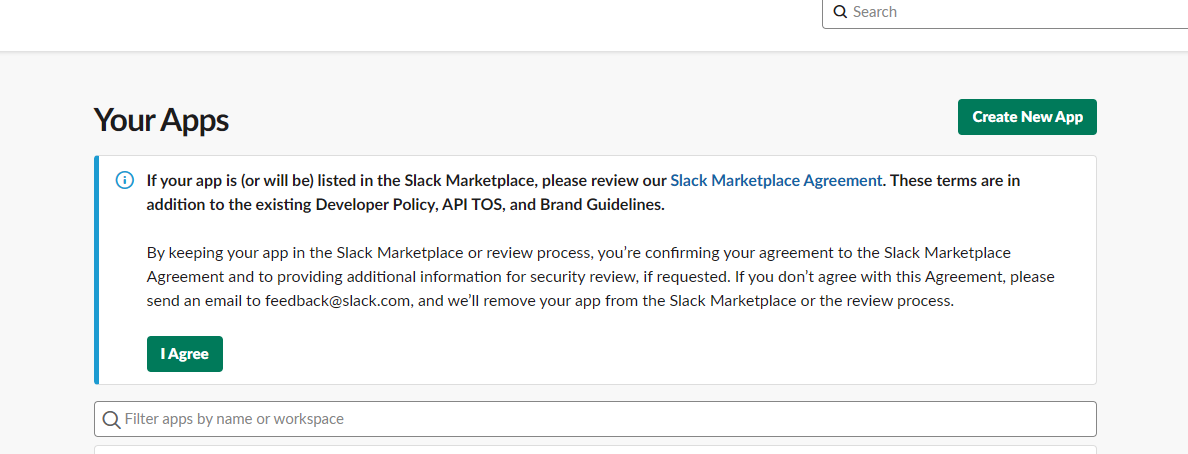
Step 3: Create a new app
You will now see this screen instead - click Create New App.
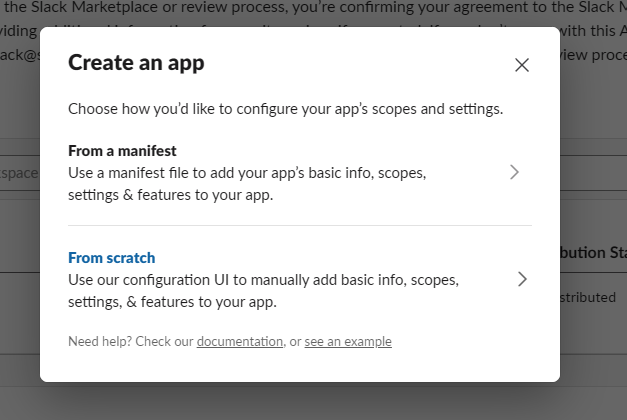
Step 4: Select "From scratch"
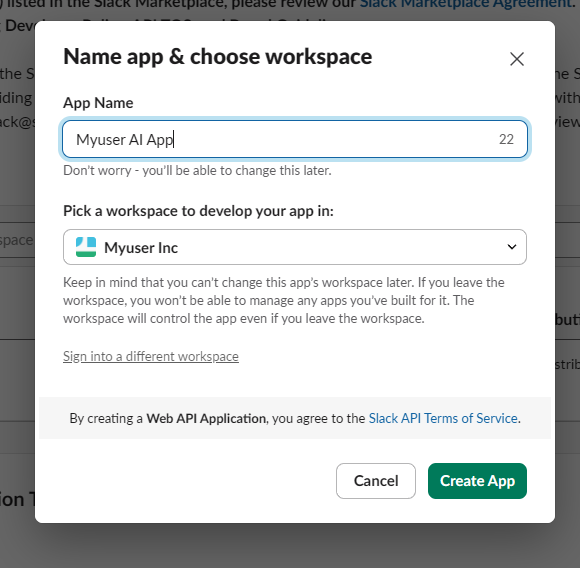
Step 5: Name it and pick a workspace
Name it as you like - preferably a name containing Myuser so you recognize it. Pick a workspace, then click Create App.
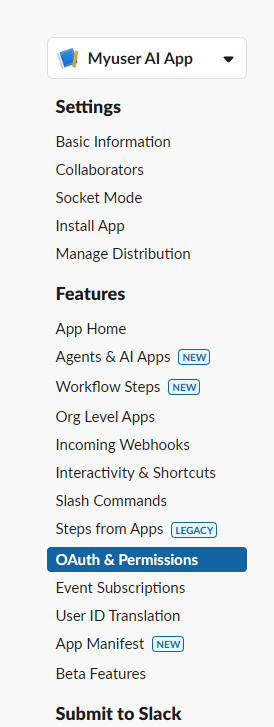
Step 6: Open OAuth & Permissions
From the settings menu choose OAuth & Permissions.
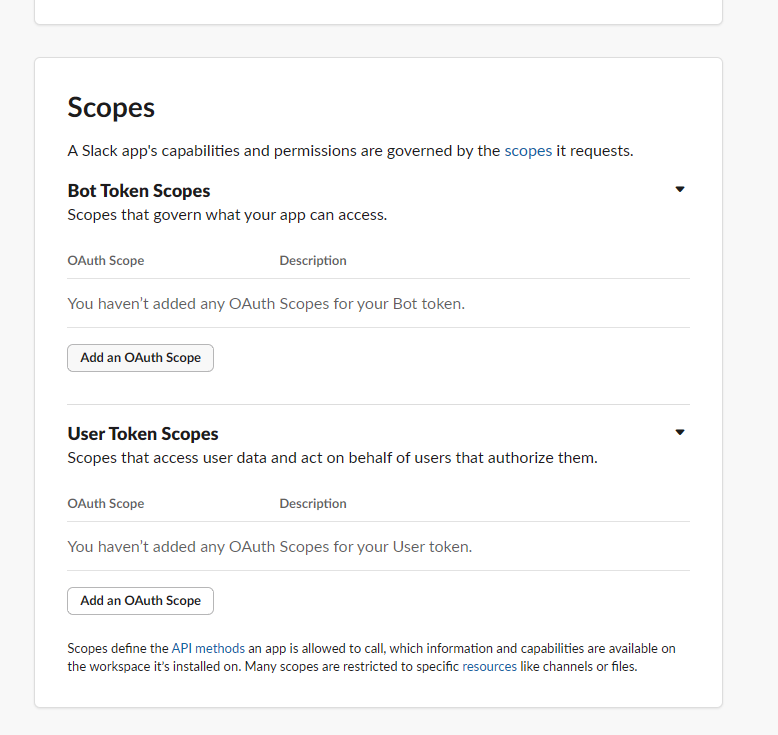
Step 7: Scroll down to the Scopes section
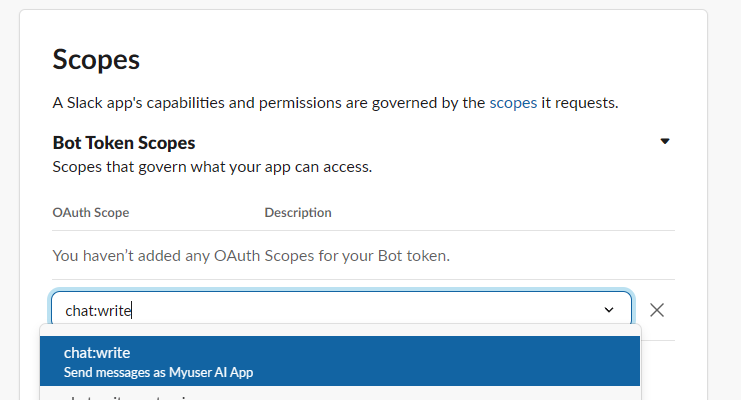
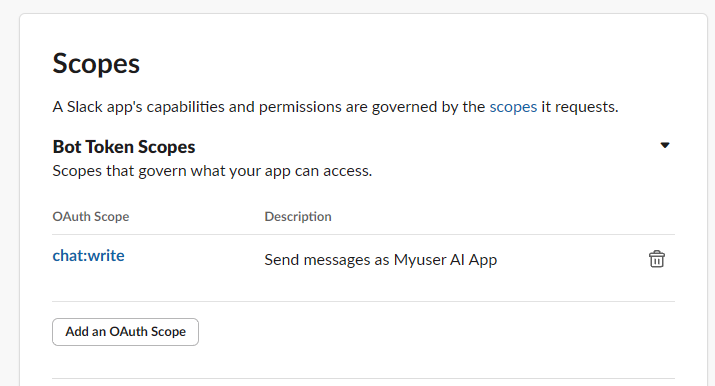
Step 8: Add the chat:write scope
Click Add an OAuth Scope and type chat:write - this lets the app send messages.
Step 9: Install to Workspace
In the same section scroll up - the Install to Workspace button is now enabled and contains your workspace name. Click on it.
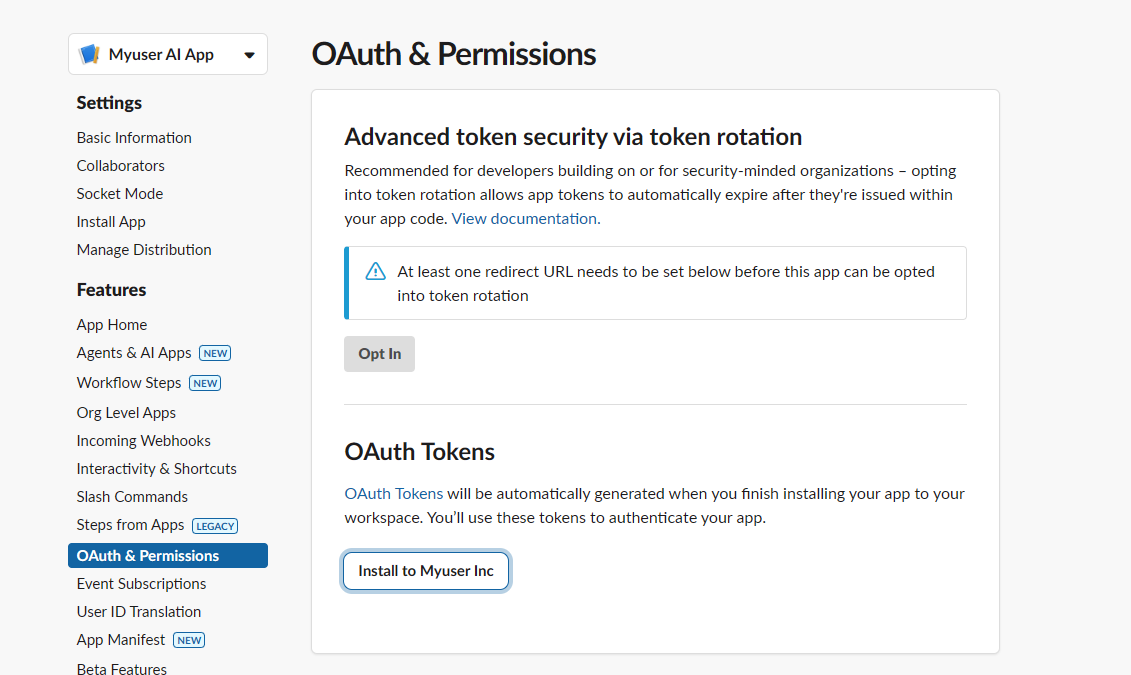
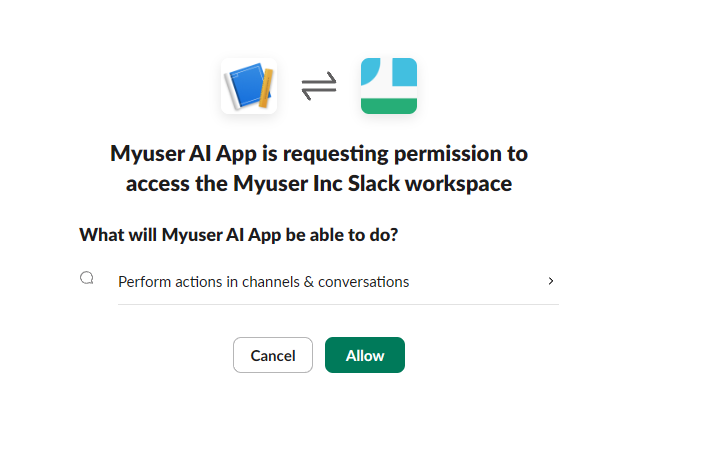
Step 10: Click Allow
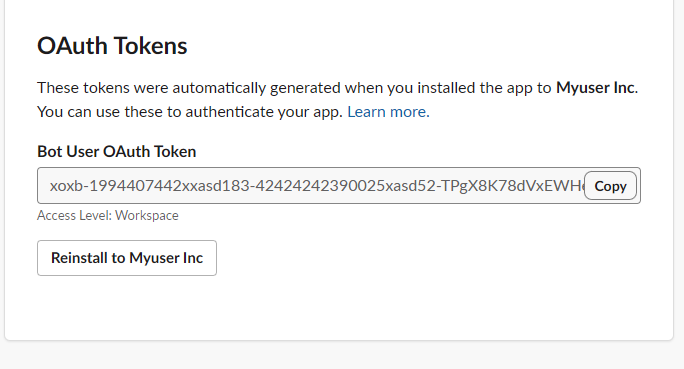
Step 11: Copy the Bot User OAuth Token
Click Copy next to the Bot User OAuth Token.
Step 12: Open Integrate Into Apps in Myuser
In the products section of themyuserlyinc.com/dashboard, click Product info on the product you want to integrate, then click Integrate Into Apps.

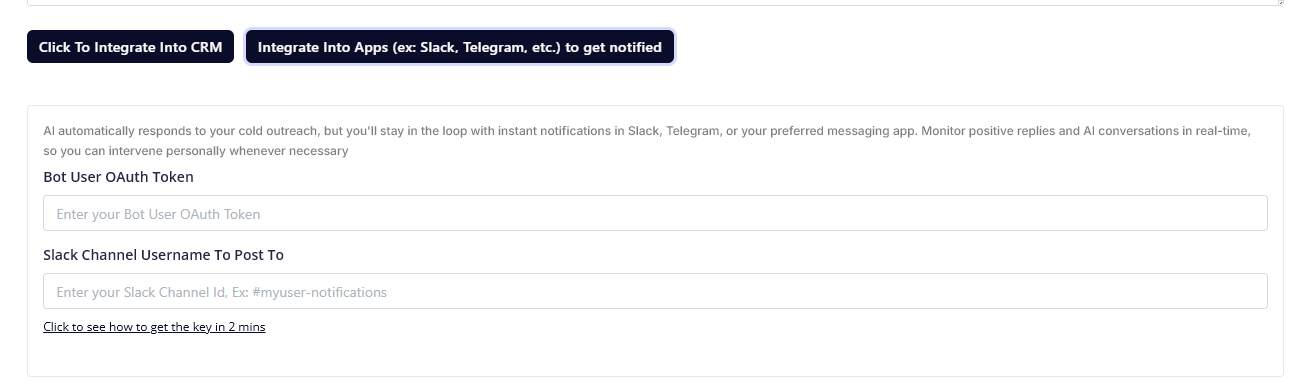
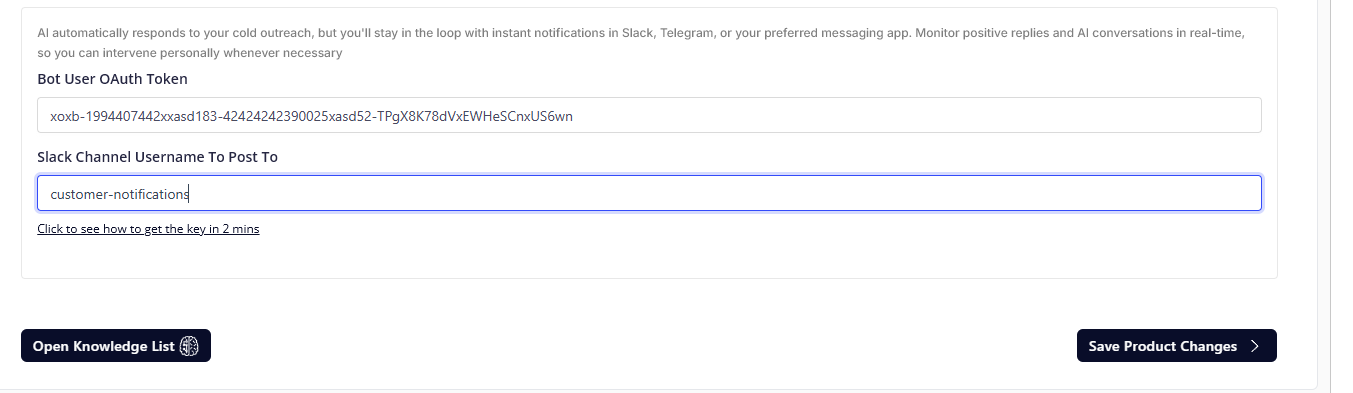
Step 13: Paste the token
Paste the Bot User OAuth Token you copied on step 11.
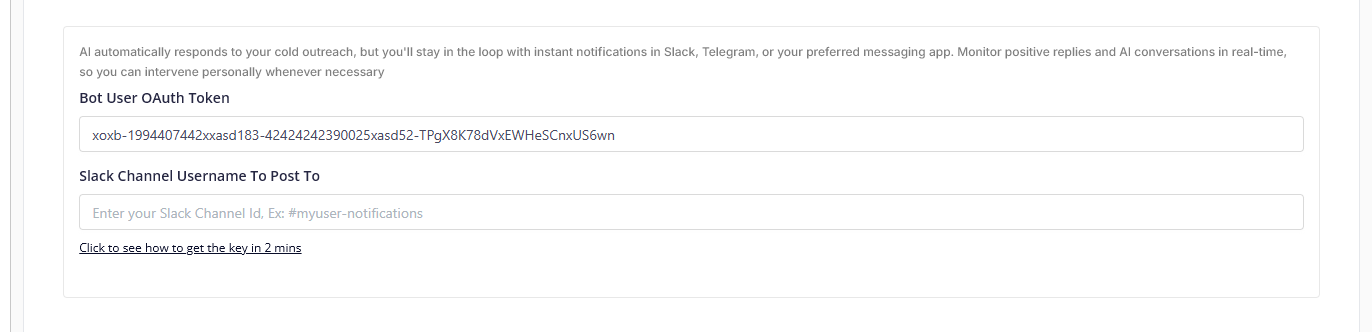
Step 14: Add the Slack channel name
Now add the Slack channel username, which you can find inside your Slack workspace. It looks like this - yours will be different:
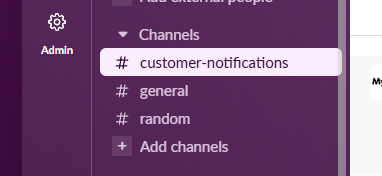
Step 15: Invite the app into the channel
Go into the channel in Slack and type /invite.
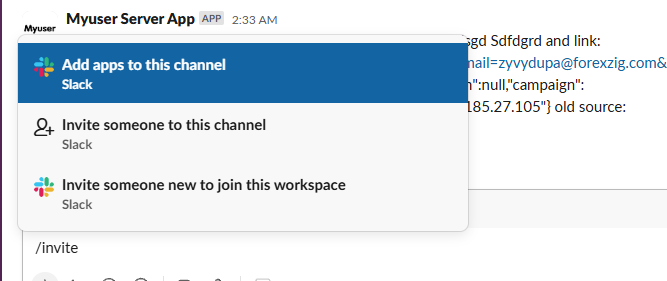
Then click Add Apps to this channel, search the app name you just created and click Install.
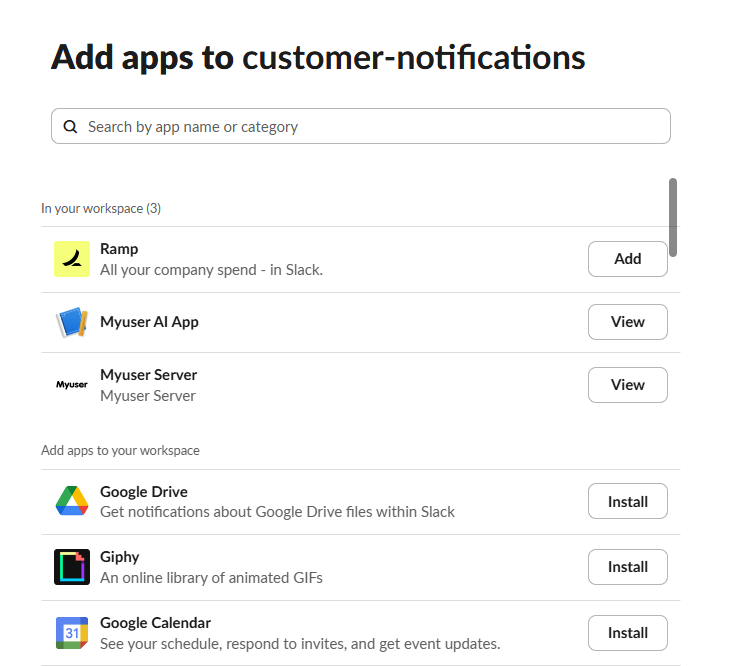
Step 16: Type the channel name into Myuser
For this example, let's say I want to integrate into customer-notifications. After following step 15 and inviting the app, I type customer-notifications into the Myuser dashboard field.
Step 17: Save and check Slack
Click Save - you should receive this in the Slack channel if the integration was successful:

Congratulations - you're all set! Myuser will now post updates straight into your Slack channel.
Staying in control
- The app lives in your own workspace - manage it any time at api.slack.com/apps.
- Reinstalling or regenerating the token invalidates the old one - just paste the new
- Removing the app from the channel or workspace instantly stops all messages.
token into Myuser afterwards.
Need Help?
If you have any questions or encounter issues during this integration process, please reach out to our support team - we're always here to assist!
Happy Integrating!